
What the connector can see and do
Your connected Claude or ChatGPT sees only your own Food Blog Studio data. Here's exactly what that is, how to choose what it can use, and how to remove it.
What it can see
It sees only your own account's data:
- Your posts and recipe cards, from Connect your blog. If your blog is connected with a sitemap, it sees post titles and addresses only.
- Your writing style: your Voice & Tone Profile, Ideal Reader Profile, and writing samples.
- Your blog's name and what's connected, and when it last synced.
- Your Google Analytics and Search Console data, including the searches people use to find your posts.
- Opportunities and Promotion, the same lists as those tabs.
- Your logged updates and their results.
- Your Raptive earnings, if you've connected Raptive.
It never sees your password, your billing details, your email address, or anything from other members. It can't change your blog or your Google account.
Connected Google or Raptive after you connected? Nothing to do: once that data is in Food Blog Studio, it can ask for it.
What it can't see
Food Blog Studio doesn't have these, so Claude or ChatGPT can't answer from them:
- Core Web Vitals and page speed
- Google indexing and coverage reports
- Pinterest's own analytics (it sees Pinterest visits to your blog, not pin stats)
- Newsletter opens and clicks (it sees visits from your emails when your links carry UTM tags)
- Mediavine and Journey earnings
Logging updates
It can log an update for you. Tell it what you changed, on which post, and when: "I added an FAQ to my banana bread post yesterday. Log it."
- The update shows on your Updates tab marked "logged from Claude or ChatGPT", just like one you logged there. After 14 days, you'll see how the post did.
- It can add updates, but never edit or delete them. To change one, edit or delete it on the Updates tab.
- If Food Blog Studio noticed a change to that post within 7 days of the date, logging it takes the post out of We noticed changes, just like logging it yourself.
- It's the only thing it can change. It never touches your blog, Google, or Raptive.
Choose what it can use
In Claude
Open Settings, click Connectors, and select Food Blog Studio. Under Tool permissions, set a whole group at once (like Read-only tools) or one tool at a time: Always allow (check mark), Needs approval (hand), or Blocked. We suggest Needs approval for Log an update, so Claude always checks with you before it logs anything.
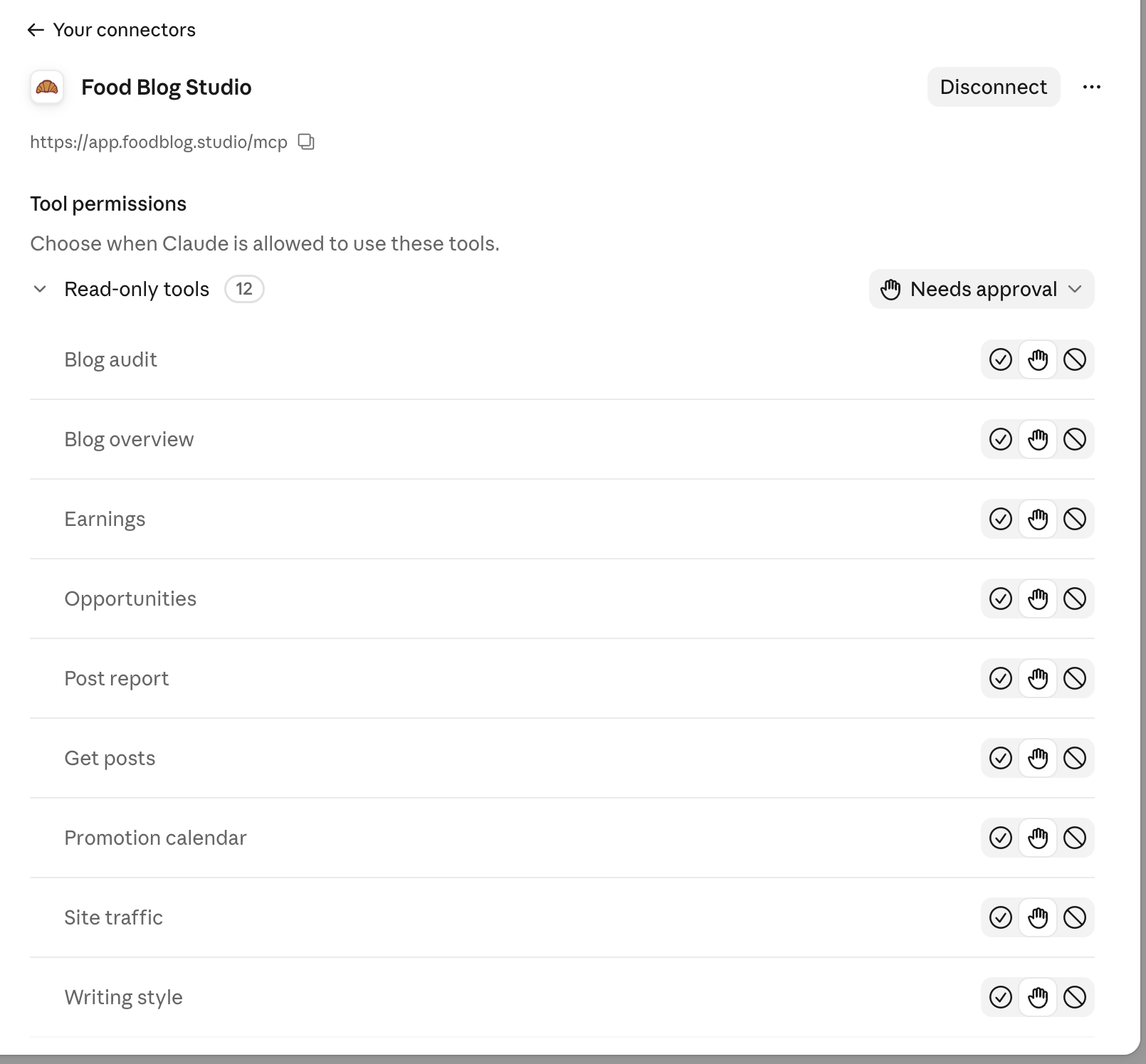
Some kinds of data sit in more than one tool, so to keep one kind out, block every tool that holds it:
- Posts and recipe cards: Search posts, Get posts, and Blog audit
- Writing style: Writing style
- Google Analytics and Search Console: Site traffic, Top posts, Post report, Opportunities, Promotion calendar, and Updates
- Earnings: Earnings
In Claude Code, type /permissions and add a Deny rule with the tool's full name, for example mcp__food-blog-studio__fbs_audit_blog.
In ChatGPT
ChatGPT can't turn off a single tool. Go to Settings > Plugins. Default permission decides when ChatGPT asks before it uses a plugin's tools, and you can open Food Blog Studio there to set its own. Pick one that asks before it changes anything, so ChatGPT checks with you before it logs an update. To keep it from seeing something at all, remove the connection.
Remove a connection
- In Food Blog Studio, go to Personalization and scroll down to AI connections.
- Find the app under Connected apps and click Revoke access.
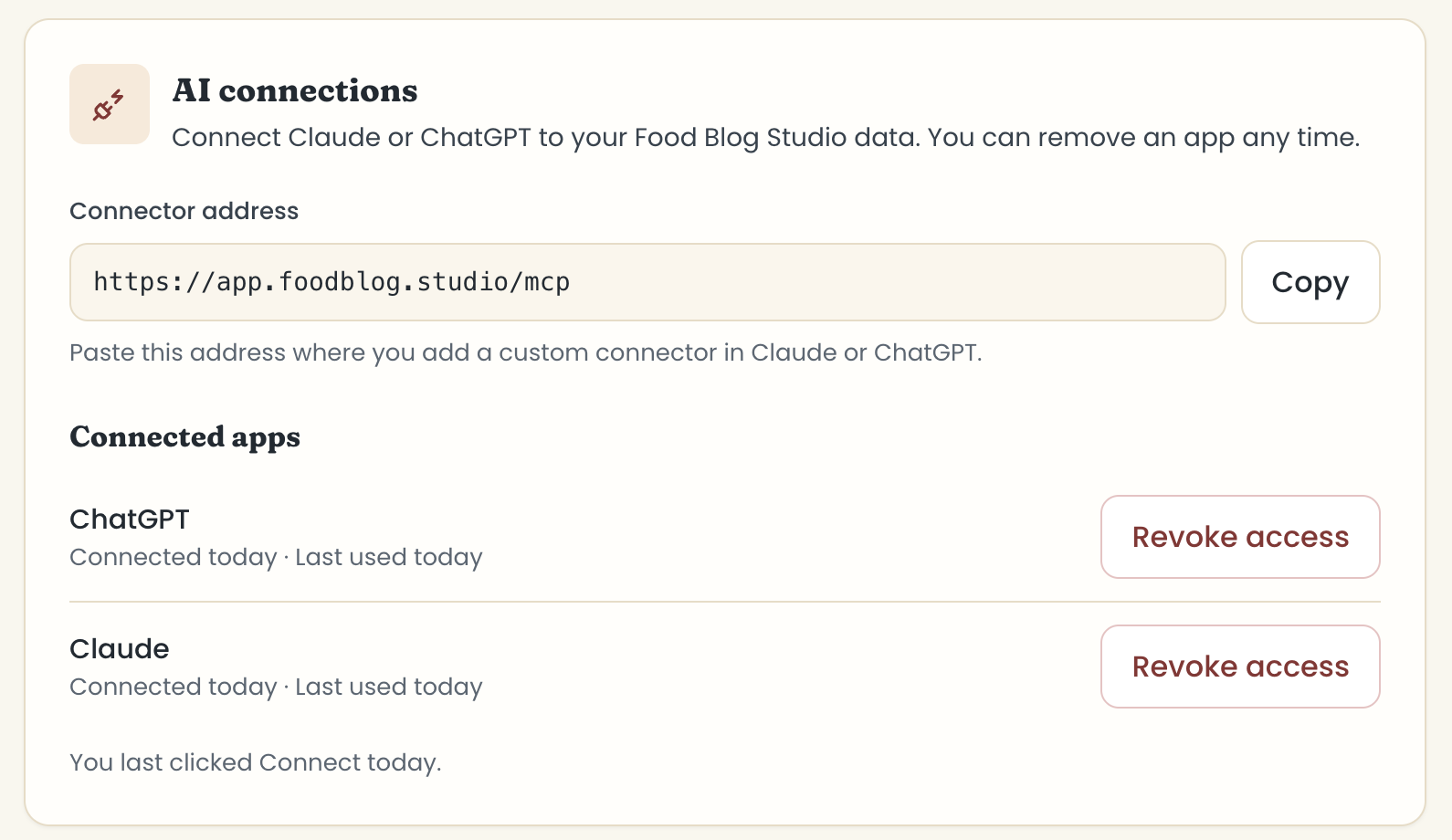
It stops seeing your Food Blog Studio data right away. You can connect it again any time from Claude or ChatGPT.
- Removing it only in Claude or ChatGPT stops that app using it, but it stays listed under Connected apps until you click Revoke access.
- One Claude row can cover more than one Claude account, if you connected from each of them. Revoke access removes them all, so connect again from any you still want.
- Logging out everywhere or changing your password doesn't remove a connection. Only Revoke access does.
- We email you each time an AI app is connected. If you didn't expect it, click Not you? Click here to revoke access in that email.
- If your plan stops including Analytics, for example when a free trial ends, your connected apps pause. The card says so, and you can still remove them there.
- Anything already in your chats stays there until you delete those chats in Claude or ChatGPT.
Your data and privacy
- Food Blog Studio never sends your data to an AI on its own. It answers only when the app you connected asks, and only with your own account's data.
- We never use your data to train AI.
- Your Claude or ChatGPT settings decide whether your chats are used to train their models. In Claude, that's under Settings > Privacy. In ChatGPT, it's Improve the model for everyone under Settings > Data controls.
- WorkOS, which handles sign-in for these connections, gets your account ID, the stand-in email address, and which apps you've connected. It never gets your real email address, your password, your posts, or your numbers.
- Read more in our Privacy Policy.
Last updated November 2, 2026
Up nextGet the most out of the connectorStill need help? Send us a message at hello@foodblog.studio