
Updates: log changes and see if they helped
Every time you update a post, log it on the Updates tab. That's how Food Blog Studio knows what to measure. Here's how, and what the verdicts mean.
Log an update
- Open Updates in Analytics and click Log an update. You can also log one from a post's page, under Updates to this post.
- Pick the post and the date of the change.
- Pick what you changed: SEO Title, Post Title, Recipe Name, Headings, Intro, FAQ, Meta Description, Content rewrite, Internal Linking, Recipe Card, Images, Added Video, or Other.
- Add a note and the keywords you're going after (optional), then click Log update.
What can I add when I log an update?
- Date of the change: pick it on the calendar. It starts on today and can't be in the future.
- What did you change? Pick everything that applies.
- Note (optional): up to 2,000 characters.
- Target Keywords (optional): up to 10, separated by commas.
Notes and target keywords show on the post's page, under Updates to this post.
Confirm updates we spot on your blog
You don't have to log every update by hand. When your data syncs each day, Food Blog Studio checks your sitemap. If a post's last-updated date changed, it shows at the top of the Updates tab under "We noticed changes to N posts".

- Click Confirm what changed and pick what you did. Tracking starts from that date.
- Click Dismiss if it was a small fix you don't want to track.
Spotted changes also show on the post's page and as a link on Home.
Why didn't my change show up?
Not every edit gets spotted, for example when lots of posts change at once from a plugin update. If you updated a post and don't see it, log it yourself with Log an update.
Read the verdict
After 14 days, each update shows one of these:
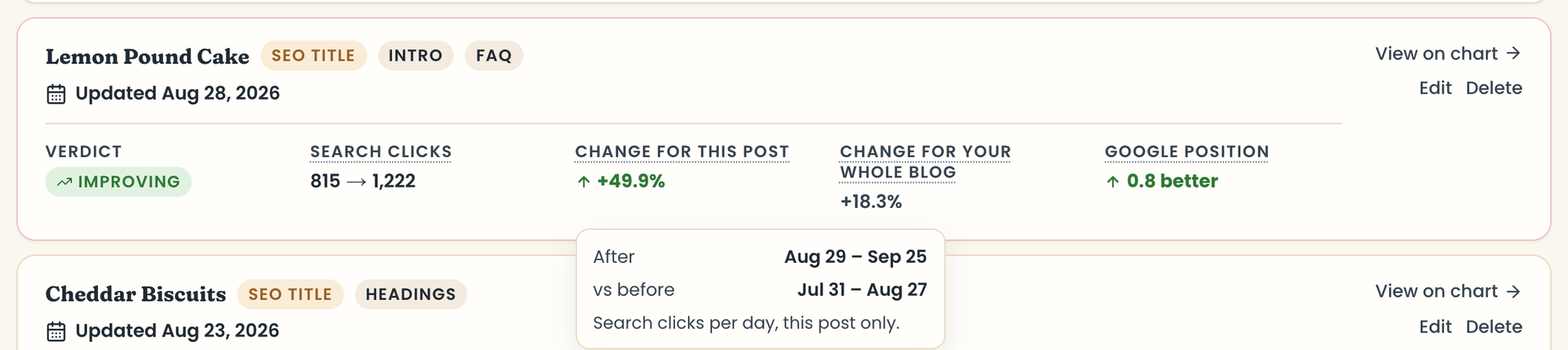
- Improving or Declining: the post did clearly better or worse than your blog overall.
- No clear change: the post moved about the same as your blog.
- Too early to tell: fewer than 14 days since the update. Check back soon.
How is a verdict decided?
Food Blog Studio compares the post's traffic in the 28 days before your update with the days after it, next to how your whole blog did over the same dates. That way a busy season or a slow week isn't mistaken for your update.
A verdict is a reading of what happened after the update, not proof the update caused it.
Why doesn't an update have a verdict?
If your synced history doesn't reach far enough back before the update, there's nothing fair to compare against.
Filter and sort your updates
- Click a card at the top, like Improving or Too early to tell, to show only those. Click it again to show all.
- Click an update type, like Intro or Recipe Card, to see only those updates.
- Use Sort to order by date, biggest gain, biggest drop, or post name.
- Switch between Detailed and Table.
Hover or tap a number on an update to see the exact dates it compares. The Updates tab shows your 100 most recent updates.
Edit or delete an update
- Click Edit to change the date, what you changed, the note, or the target keywords, then click Save changes.
- Click Delete (the trash icon on a post's page) to remove it. Food Blog Studio asks first, because this removes the update and its before-and-after reading for good.
Note
Once you log an update, that post steps aside from Opportunities for 90 days, so you're not told to update it again before the update has had time to work.
Last updated October 12, 2026
Up nextOpportunities: which posts to updateStill need help? Send us a message at hello@foodblog.studio