
Connect Claude or ChatGPT
Food Blog Studio isn't in Claude's or ChatGPT's app directory yet, so you add it yourself as a custom connector. It takes about 2 minutes. Here's what you'll need and every step for both apps.
Ask your own Claude or ChatGPT about your own blog. It can write in your voice from your real posts and recipe cards. You can also ask about your numbers and have it log updates for you.
Food Blog Studio never sends your data to an AI on its own. You choose to connect your own app, and it gets only what it asks for, only for your blog.
What you'll need
- A Food Blog Studio plan that includes Analytics. That's the Food Blog Studio plan or Food Blog Coaching membership. On Food Blog Studio Writer? Try Analytics free, and you can connect during the trial.
- Claude or ChatGPT, on any plan. Free works for both. Claude's Free plan allows one custom connector. Set ChatGPT up on the web, at chatgpt.com.
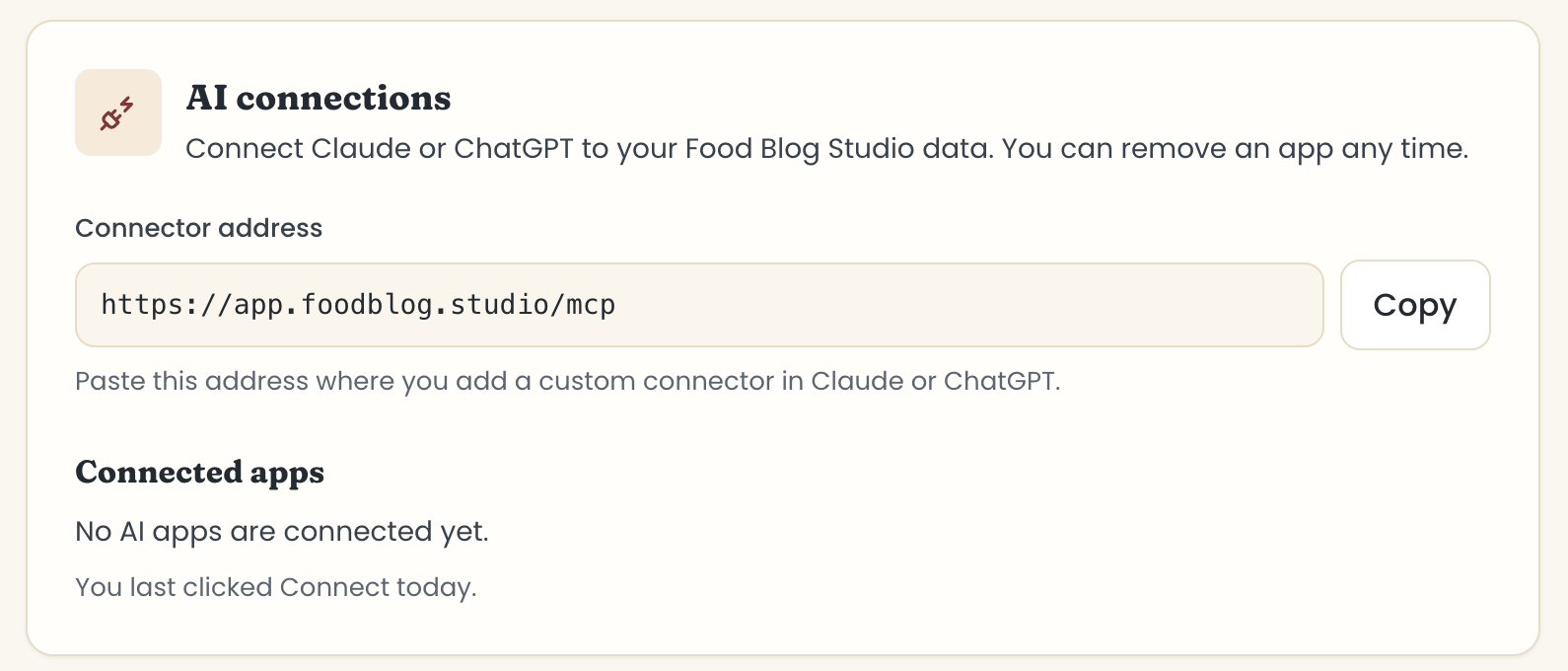
- Your connector address. In Food Blog Studio, go to Personalization in the sidebar, scroll down to AI connections (the last section), and click Copy. The address is
https://app.foodblog.studio/mcp.
Set up Claude
Set it up in claude.ai or the Claude desktop app. Once it's added, it works in the Claude phone app too.
- In Claude, open Settings and click Connectors (under Customize). Click Add, then Add custom connector.

- Name it Food Blog Studio, paste
https://app.foodblog.studio/mcpas the address, and click Continue. Claude checks the server for a few seconds.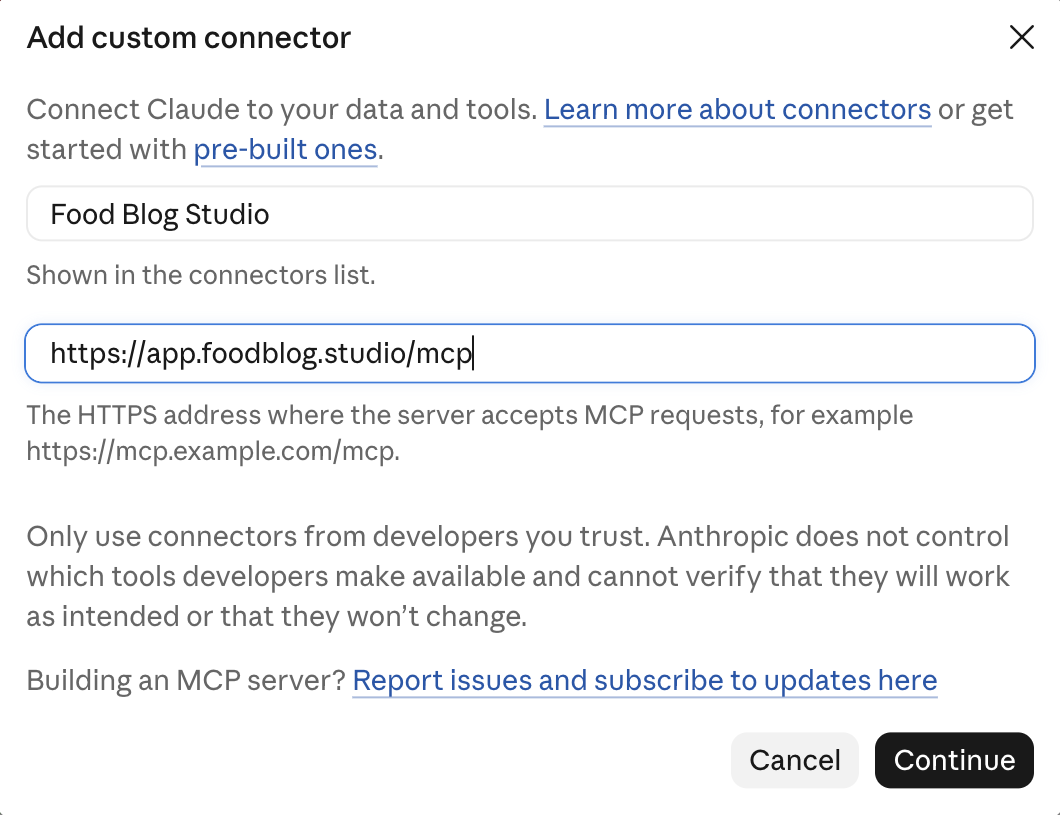
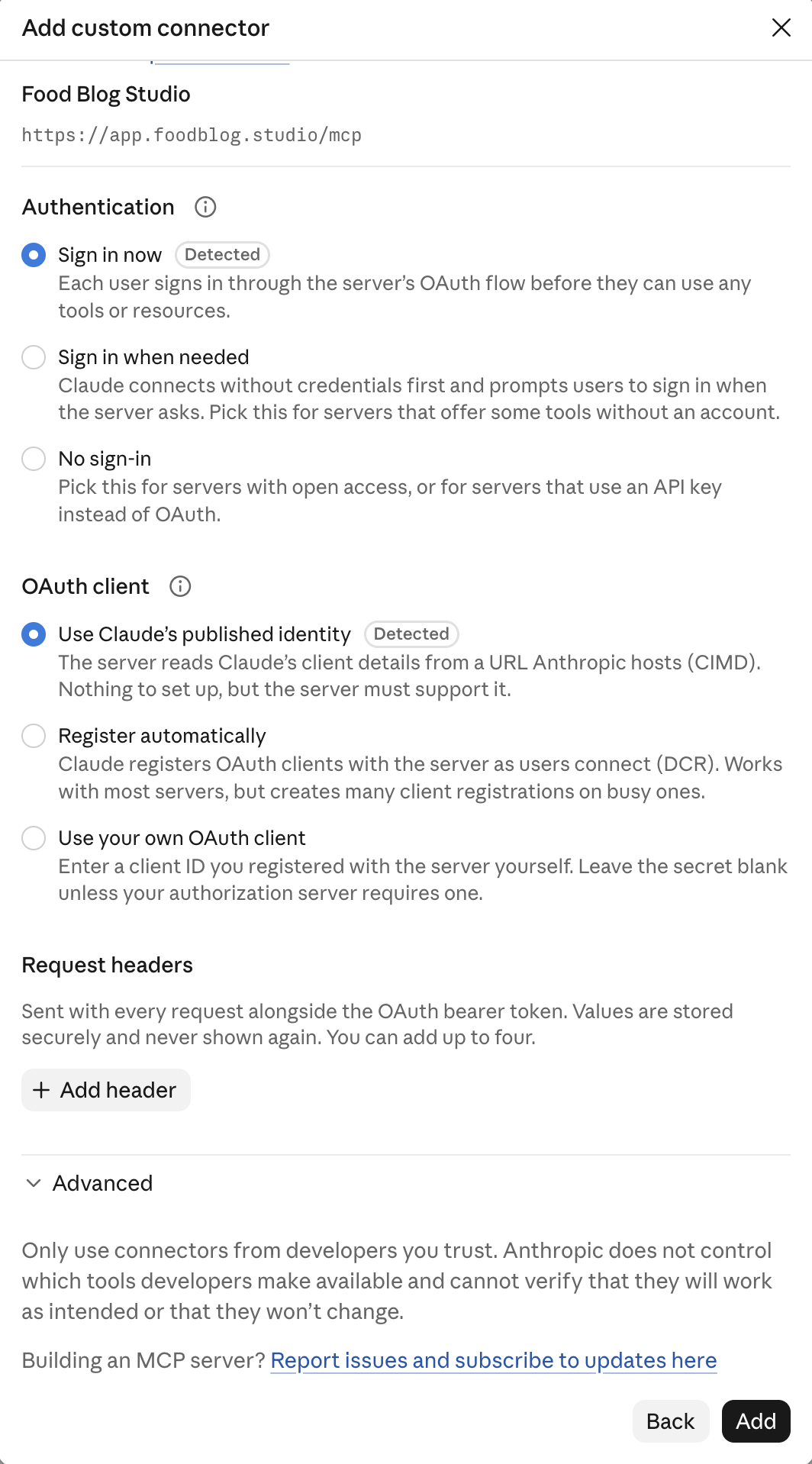
- Claude shows how to sign in. Keep Sign in now and Use Claude's published identity (Claude picks both for you and marks them Detected). Scroll down to the bottom of the box and click Add. You can't change these later, so if connecting fails, remove the connector and add it again.
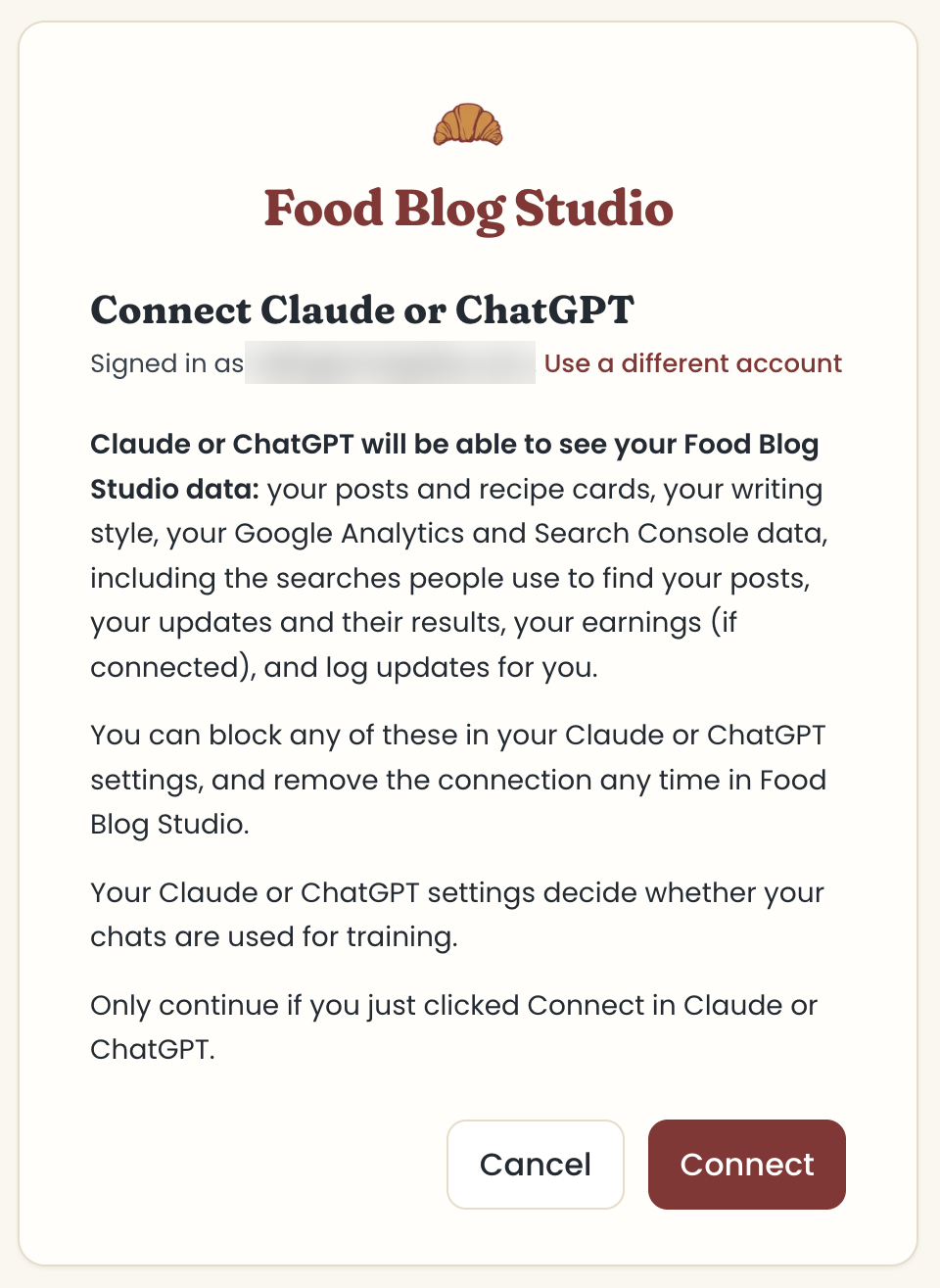
- Food Blog Studio's connect screen opens. If it doesn't, find Food Blog Studio in your connectors list and click Connect. Sign in if it asks, and read what Claude will be able to see. Move your mouse over the screen, then click Connect. The button stays dim until you do, so another site can't trick you into clicking it.
- A short screen from WorkOS, the company that handles sign-in for these connections, says Claude would like access to your account. Click Allow access.
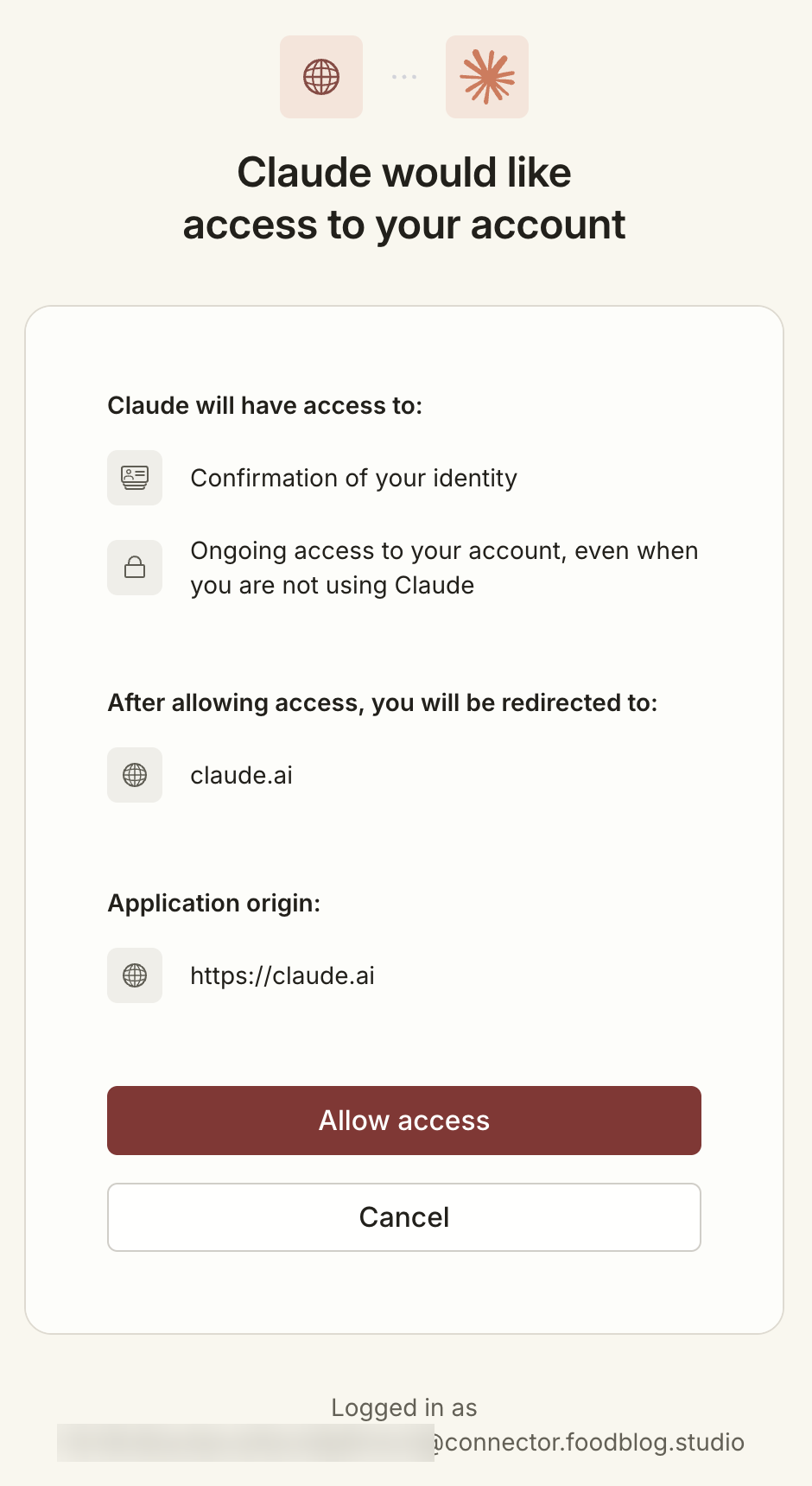
- You're back in Claude, and it says Connected to Food Blog Studio.
The bottom of the Allow screen says you're logged in as an address ending in @connector.foodblog.studio. That's a stand-in made for this connection, not your real email.
On a Claude Team or Enterprise plan, an Owner adds the connector first, under Organization settings > Connectors. Then you connect it with your own Food Blog Studio login.
Set up ChatGPT
In ChatGPT, connectors are called plugins. Set it up on chatgpt.com.
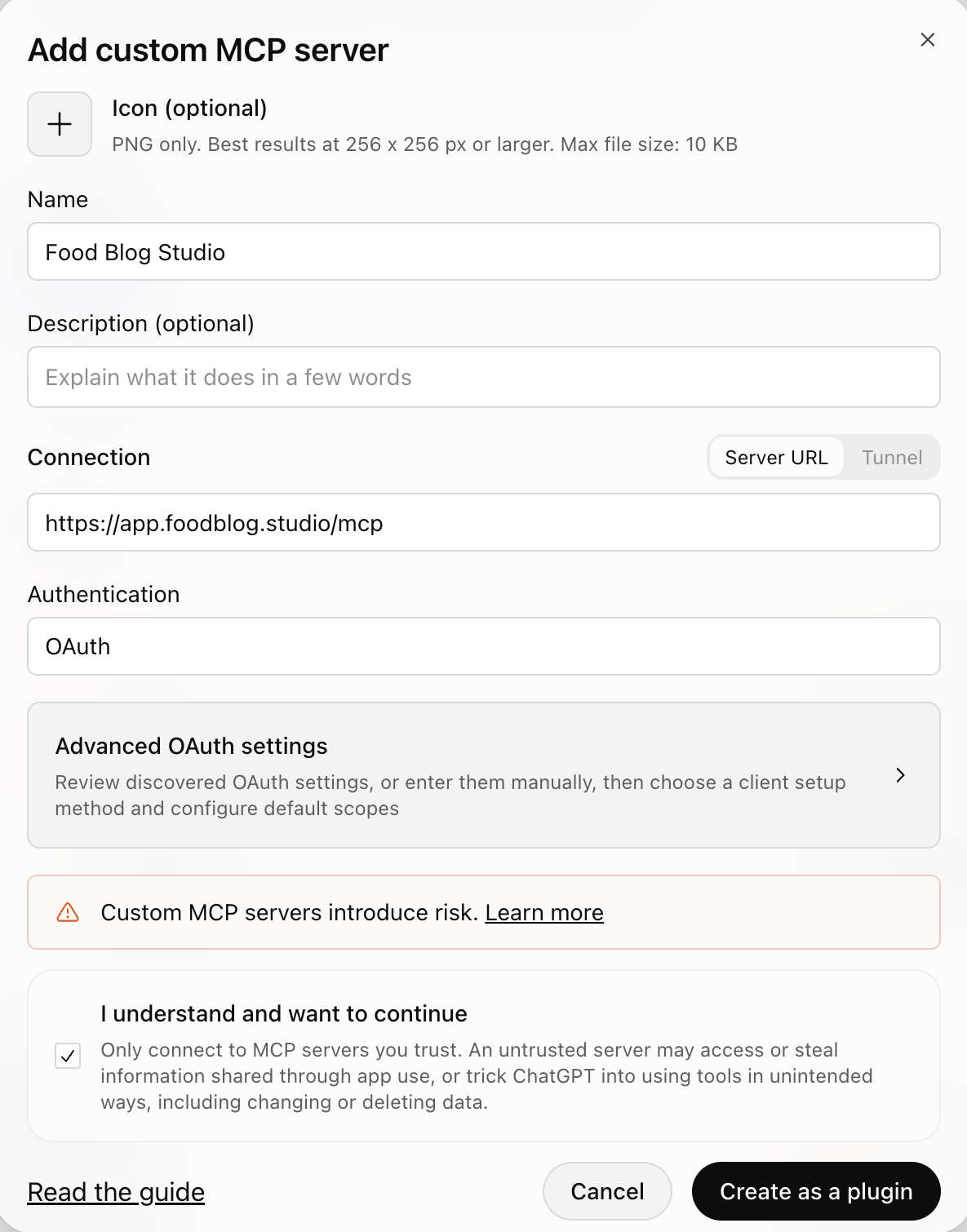
- Click Plugins in ChatGPT's sidebar. Click Add at the top right, then Add custom MCP server.

- Name it Food Blog Studio. Under Connection, keep Server URL and paste
https://app.foodblog.studio/mcp. Under Authentication, keep OAuth. You can skip the icon and description. - Tick I understand and want to continue, then click Create as a plugin.
- Food Blog Studio's connect screen opens, the same one as for Claude. Sign in if it asks, read the list, move your mouse over the screen, and click Connect.
- On the WorkOS screen, ChatGPT would like access to your account. Click Allow access, and you're back in ChatGPT.
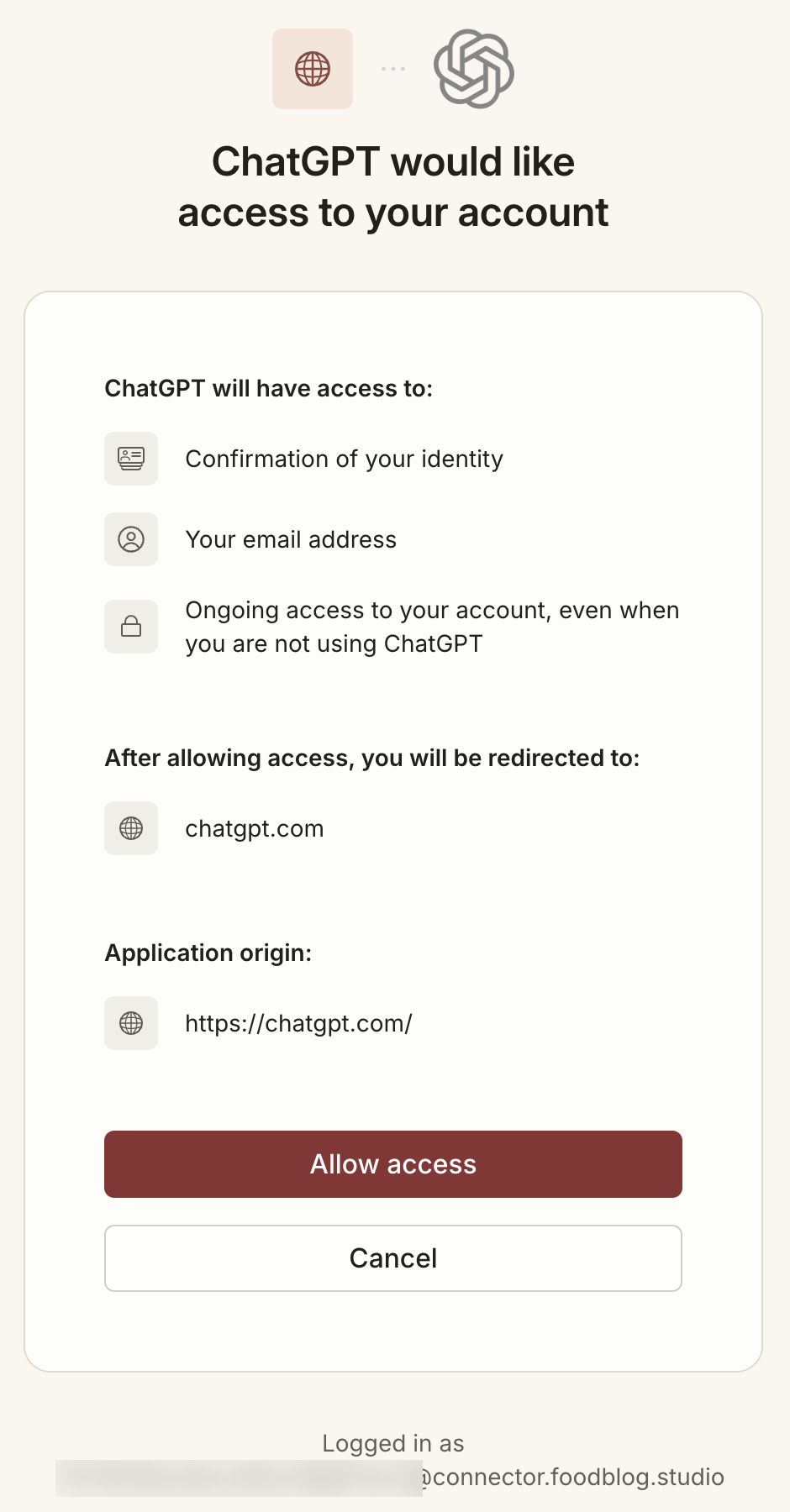
This screen says ChatGPT gets your email address. It's the stand-in ending in @connector.foodblog.studio, not your real one. ChatGPT shows it later under Connected accounts.
ChatGPT shows its custom MCP server warning for any server you add yourself. It's a reminder to only add servers you trust.
Having trouble connecting?
- "Couldn't connect to the server" or "no MCP server found." The address is wrong. Remove the connector, then add it again with the address from the AI connections card. Don't copy the address from your browser's address bar while you're connecting: that's a different one.
- "Connecting Claude or ChatGPT is included with plans that have Analytics." Your plan doesn't include Analytics. Upgrade in Food Blog Studio under Settings > Billing, or try Analytics free, then connect again.
- "This AI app isn't supported yet." Food Blog Studio connects to Claude, Claude Code, and ChatGPT.
- "This link has expired or was already used." Start again from Claude or ChatGPT.
- It connected, but can't find something you expected. Ask "What can you see in my Food Blog Studio account?" It lists what's connected and what's missing. See What the connector can see and do.
Once you're connected, see Get the most out of the connector for questions to try.
Last updated November 2, 2026
Up nextWhat the connector can see and doStill need help? Send us a message at hello@foodblog.studio